How to Make YouTube Shorts in CapCut, Step by Step
Six steps to edit a vertical 9:16 YouTube Short in CapCut, from new project to final export.
1. Start a vertical 9:16 project
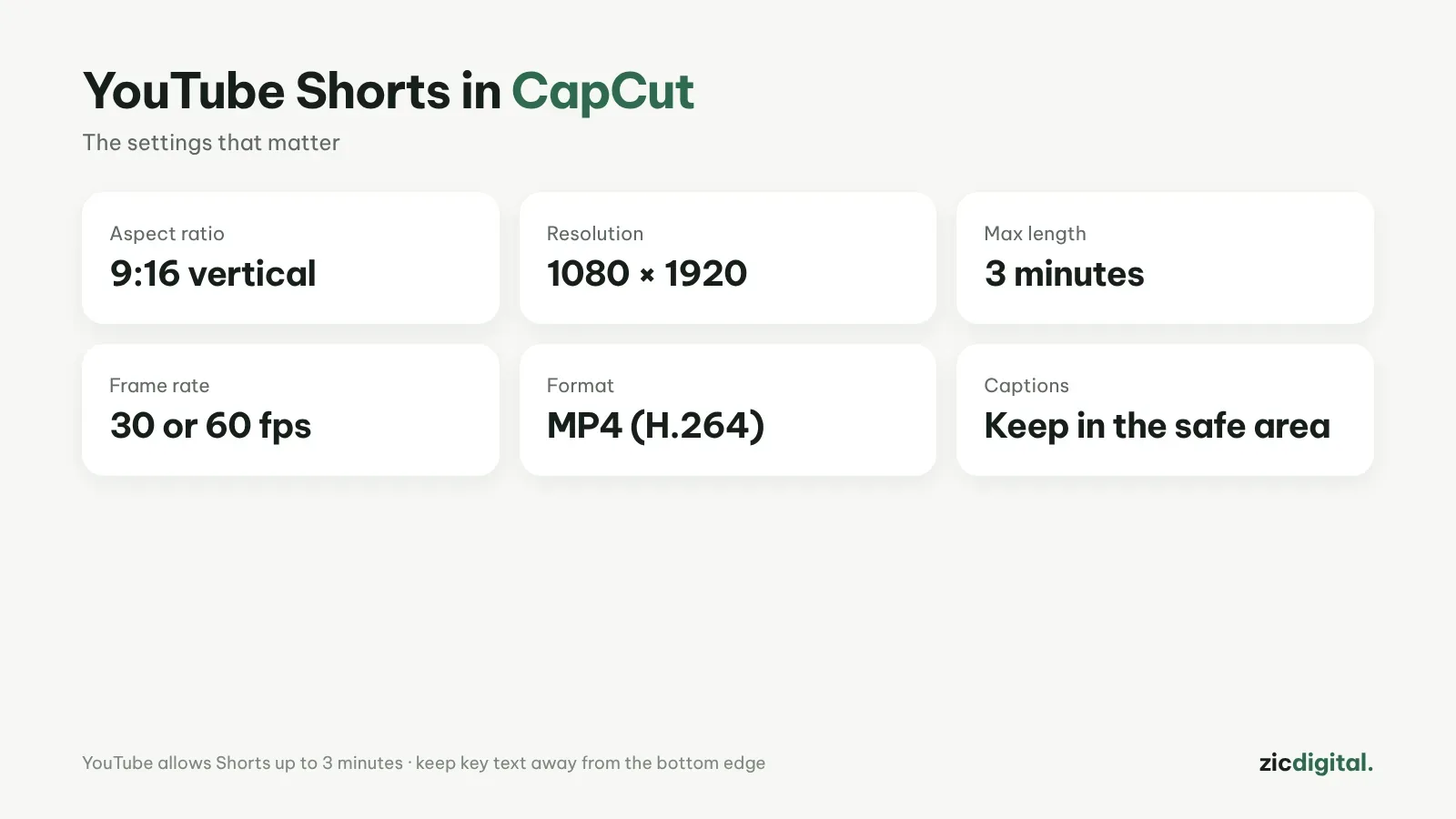
Open CapCut, create a new project and choose the 9:16 ratio. Shorts fill the phone screen, so a vertical frame avoids black bars.
2. Stay under 3 minutes
YouTube allows Shorts up to 3 minutes, but shorter videos are usually watched to the end more often. Put the most interesting moment in the first 2 seconds.
3. Cut tight
Remove pauses and keep each shot to a few seconds. On desktop, the split shortcut is Ctrl+B.
4. Add auto captions
Many people scroll Shorts with the sound off. Go to Captions → Auto captions, then fix any misheard words. See the auto captions guide.
5. Keep music and text in the safe area
Place key text in the middle of the frame, away from the bottom edge where YouTube shows the channel name and buttons.
6. Export
Export at 1080×1920, 30 or 60 fps, MP4. If you used a template, delete the ending clip with the CapCut logo first. See the right export settings.
The free plan covers all six steps. To see when paying makes sense, read which CapCut plan you need.
Pairs well with: vidIQ – YouTube ideas & SEO · Epidemic Sound – Music for YouTube · ElevenLabs – Natural AI voiceover
Compare: vidIQ vs TubeBuddy 2026 · Epidemic Sound vs Artlist 2026