How to Add Auto Captions in Clipchamp (Free, with SRT Download)
Turn on autocaptions in Clipchamp on Windows or in your browser, fix mistakes, style the text and download an .SRT file — all on the free plan.
Clipchamp comes with Windows 11 and also runs in the browser. Autocaptions work on the free plan, and exports are 1080p with no watermark. These steps follow Microsoft's official help page.
Step by step
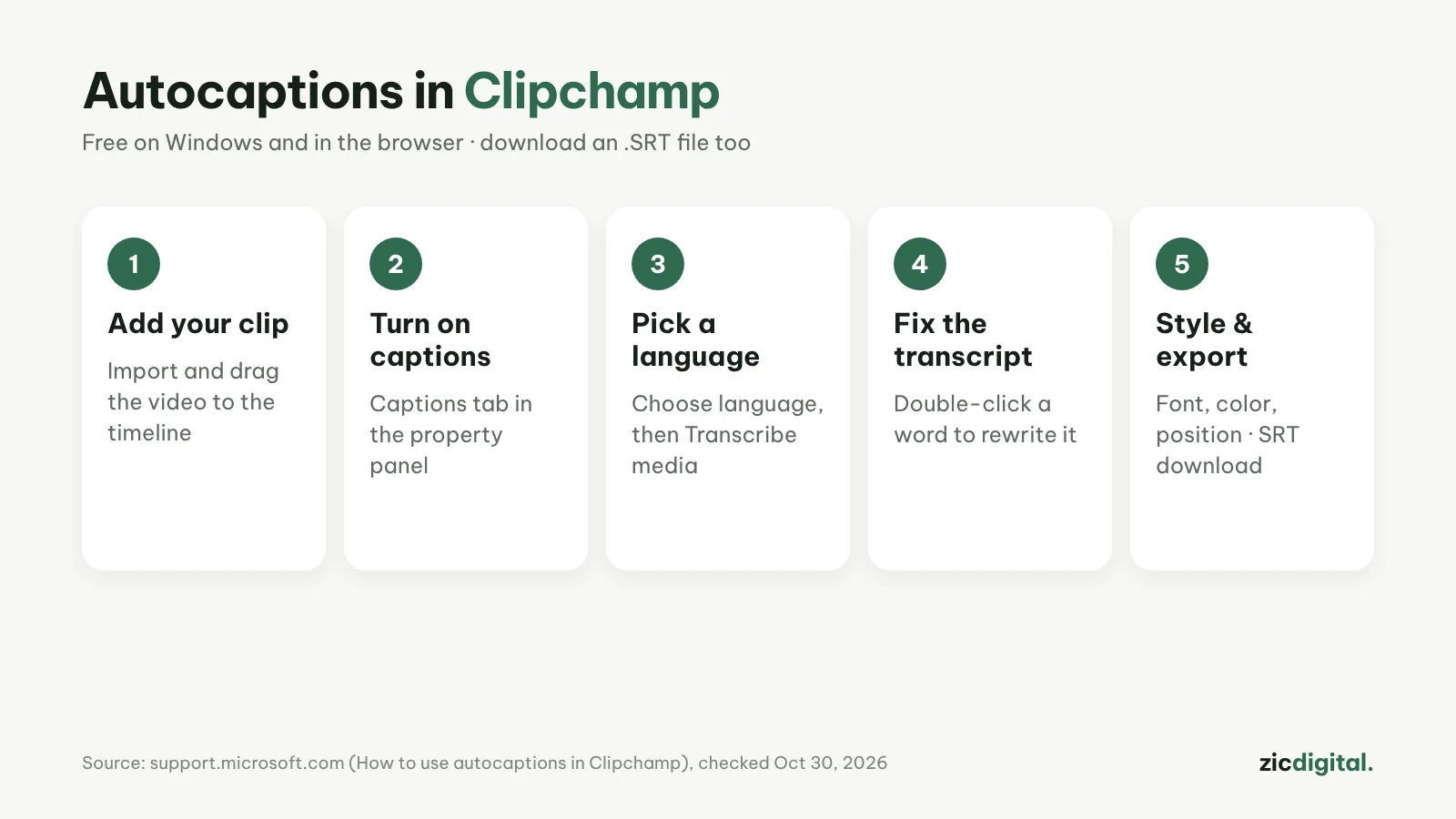
- Import a video with speech (My media) and drag it to the timeline.
- Click the captions icon in the preview, or open the Captions tab in the property panel and turn on autocaptions.
- Choose the language and whether to filter profanity, then click Transcribe media.
- The timestamped transcript appears in the Captions tab: double-click a wrong word to fix it.
- Select the text in the preview to change font, color and position; click download captions for an .SRT file, then export.
Tips for cleaner captions
- You get one caption language per video.
- Microsoft recommends white text with an outline or shadow for readability.
- To hide captions but keep the transcript, use hide captions in video.
- Upload the .SRT to YouTube as closed captions viewers can switch on and off.
How much is free
Autocaptions are free, and exports are 1080p with no watermark. Audio is processed automatically by Microsoft's Azure services; the help page says no person listens to it.
Steps follow the official help page, checked October 30, 2026; menus may change with updates.
Read more: Clipchamp review · best free auto caption apps · CapCut auto captions · editing by text in Descript · CapCut vs Clipchamp