Edit Video by Editing Text in Descript: A Beginner's Guide
Descript turns video into a document: delete words to cut footage, remove filler words, clean up audio and add captions. Step by step, plus free plan limits.
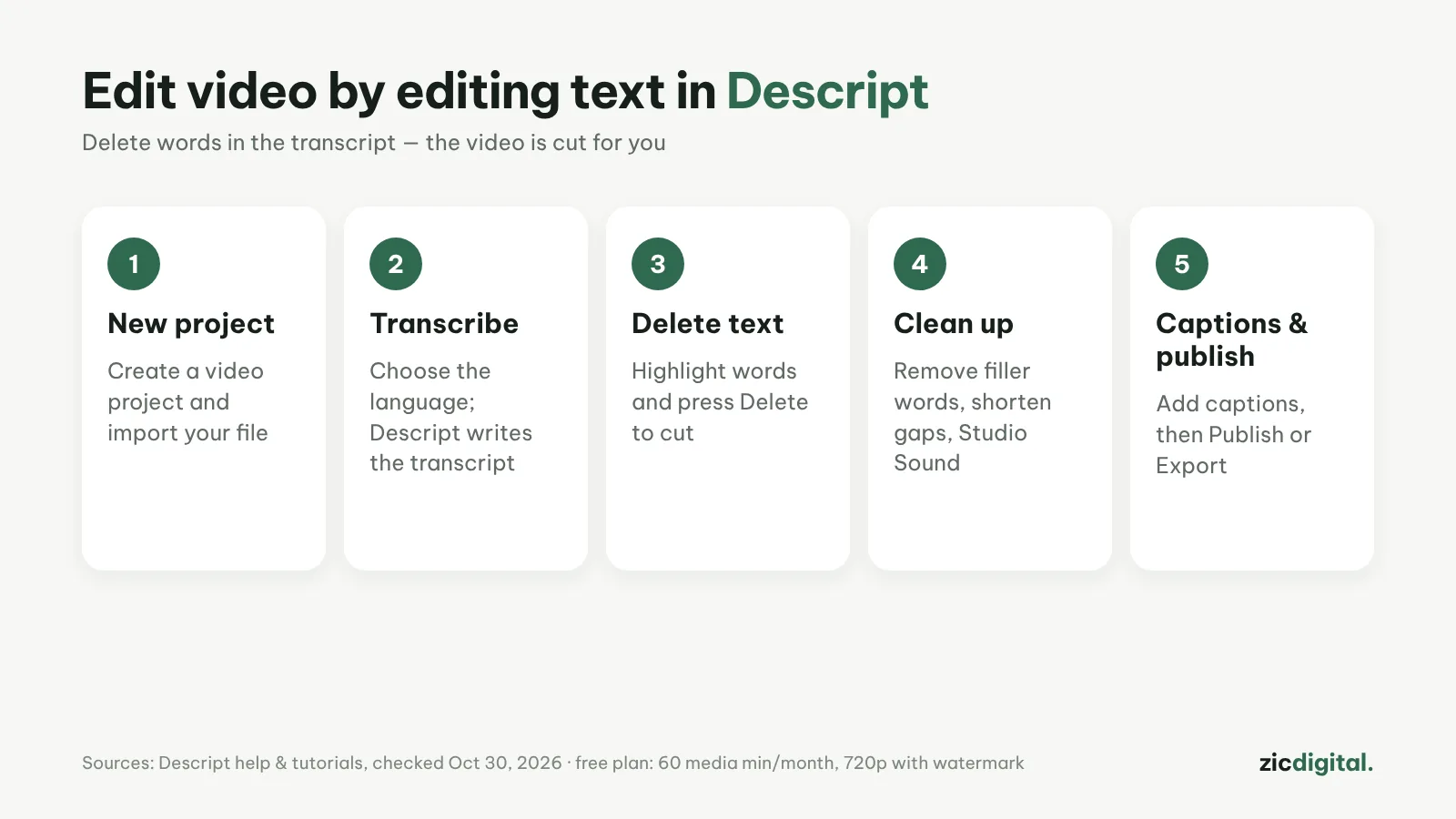
In Descript you edit video like a document: it transcribes automatically, and when you delete a sentence the matching footage is cut. It's ideal for podcasts, talking-head videos and tutorials.
Step by step
- Create a New Project (Video), name it and drag in your file.
- Pick the language so Descript can transcribe; you can add speaker names.
- Highlight extra sentences in the transcript and press Delete — the footage is cut. Cut and paste text to reorder.
- Use filler word removal (um, uh…) and Shorten word gaps to tighten pauses; turn on Studio Sound to reduce noise.
- Add Captions (the T icon), pick a style, then use Publish to post or export video and subtitle files.
Tips for cleaner captions
- After big deletions, watch the cuts to avoid jumpy edits.
- Naming speakers makes it quick to remove one person's section.
- Better transcripts mean cleaner cuts — record clear audio from the start.
- For heavy color or effects work, export the timeline to another editor.
How much is free
The free plan includes 60 media minutes a month and exports 720p with a watermark. Paid plans start around $16–24/month depending on yearly or monthly billing.
Steps follow the official help page, checked October 30, 2026; menus may change with updates.
Read more: Descript review · best free auto caption apps · CapCut auto captions · captions in Adobe Premiere · CapCut vs Descript