How to Export and Upscale AI Video Clips for YouTube
Five steps to sharper AI clips on YouTube without wasting credits: draft at low resolution, generate the right frame, upscale once, keep one frame rate and export with the right settings.
AI clips usually come out at 720p or 1080p and can look soft on YouTube. The fix isn’t paying for top resolution every time, but doing things in the right order.
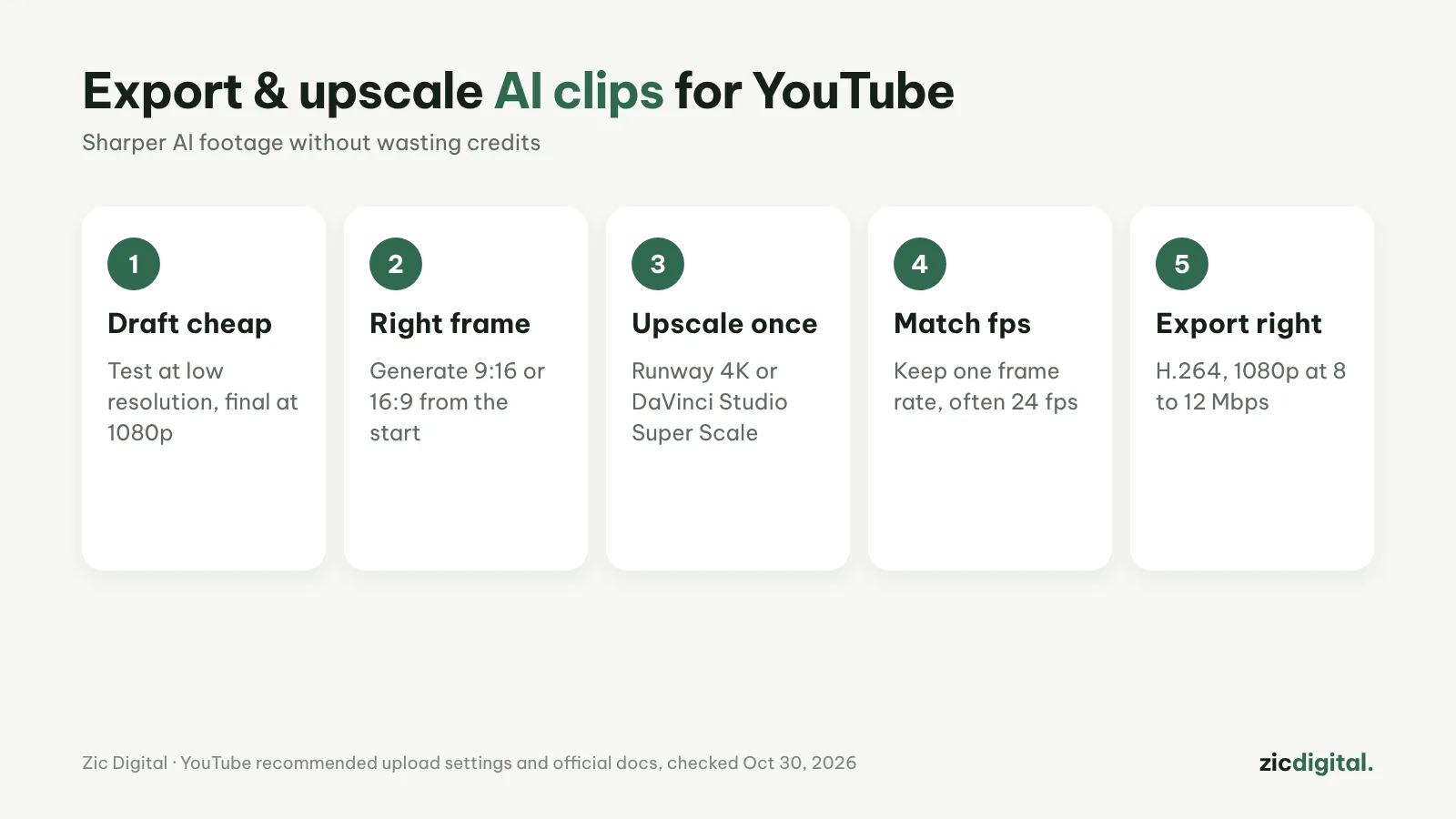
1. Draft cheap, finish at 1080p
Test prompts at low resolution (Wan 480p, about $0.05 per second) and only generate the final at 1080p (about $0.20 per second) once the shot works. Hailuo can make 2K, but it costs more credits.
2. Generate the right frame from the start
Use 9:16 for Shorts and 16:9 for long videos. Cropping after generation throws away pixels and sharpness.
3. Upscale once
Runway offers 4K upscaling from Standard; DaVinci Resolve Studio has Super Scale. Upscale once, before adding text and color grading, not again and again.
4. Keep one frame rate
Many AI clips come out at 24 frames per second. Set your timeline to match and keep every clip the same; mixing frame rates causes stutter.
5. Export with YouTube’s settings
H.264, 1080p at about 8 Mbps (24–30 fps) or 12 Mbps (48–60 fps); 4K at about 35–45 Mbps. See our CapCut and DaVinci Resolve export guides for details.
Extra tips
- Many creators export at 1440p or 4K so YouTube uses a higher-quality codec, even from a 1080p source
- Don’t use watermark removers to “clean” clips: that can break the service’s terms
- Name files by shot and save the prompt with them so you can regenerate
- Check the result on a phone before publishing, since most Shorts viewers watch on phones
Guide based on official help pages, docs and policies, checked October 30, 2026 — no affiliate links.
Read more: CapCut Export Settings for YouTube and TikTok · DaVinci Resolve Export Settings for YouTube (Free Version) · Runway review · Wan (Alibaba) review · AI Video Free Plans, Watermarks and Commercial Use · 10 Best AI Video Generators in 2026