DaVinci Resolve Export Settings for YouTube (Free Version)
YouTube export settings in free DaVinci Resolve: the YouTube preset, H.264, YouTube's recommended bitrates, audio and uploading straight to your channel.
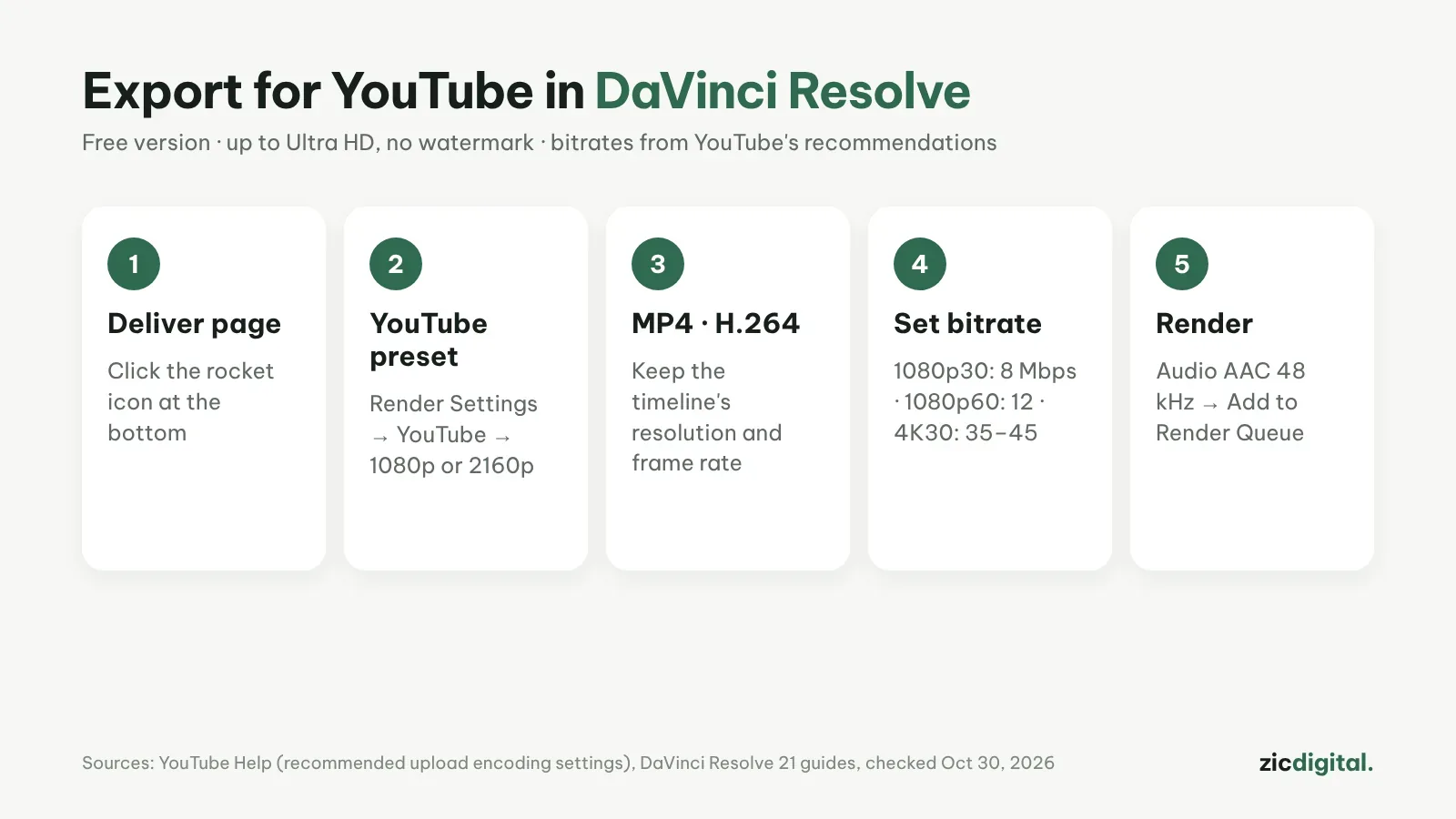
Free DaVinci Resolve exports up to Ultra HD (3840×2160) with no watermark. A few settings on the Deliver page keep your video sharp on YouTube. The bitrates below come from YouTube's official recommendations.
Step by step
- Open the Deliver page (the rocket icon in the bottom bar).
- In Render Settings, pick the YouTube preset, then 1080p or 2160p.
- Check Format: MP4 and Codec: H.264; keep resolution and frame rate the same as your timeline.
- Under Quality, use Restrict to with the bitrate from the table below.
- In the Audio tab use AAC at 48 kHz. Name the file, pick a folder, click Add to Render Queue, then start the render in the Render Queue on the right.
YouTube's recommended bitrates
- 1080p, 24–30 fps: 8 Mbps (8,000 kbps)
- 1080p, 48–60 fps: 12 Mbps
- 4K, 24–30 fps: 35–45 Mbps
- 4K, 48–60 fps: 53–68 Mbps
Tips
- Make sure Entire Timeline is selected so you don't export only an In/Out range.
- For Shorts, set the timeline to 1080×1920 before editing, then export as above.
- You can upload straight to YouTube after linking your account in Preferences → System → Internet Accounts. Keep a copy on disk and publish as private first.
- On Windows, hardware-accelerated encoding is mostly a Studio feature, so free renders can be slower.
How much is free
The free version is plenty for YouTube: Ultra HD at 60 fps, no watermark, no length limit. Studio ($295 one-time) adds higher resolutions, GPU acceleration and HDR tools.
Based on official sites, help pages and app stores, checked October 30, 2026; menus may change with updates.
Read more: DaVinci Resolve review · free video editors with no watermark · CapCut export settings · removing the InShot and Filmora watermark · CapCut vs DaVinci Resolve
The full YouTube creator toolkit: YouTube Creator Toolkit 2026
See also: Music for YouTube Without Copyright Claims · How to Record Your Screen with OBS Studio for YouTube (Free)