How to Make an AI Voiceover for YouTube with ElevenLabs
Five steps from script to voice track in ElevenLabs, then into CapCut or Descript for editing. Plus tips for a natural voice and what to know about commercial rights.
An AI voiceover lets you make story, explainer or review videos without recording yourself. Here's how to do it with ElevenLabs, based on its official docs. The free plan is enough to try (about 10 minutes a month), but monetized videos should use Starter ($6/month) or higher, which includes a commercial license.
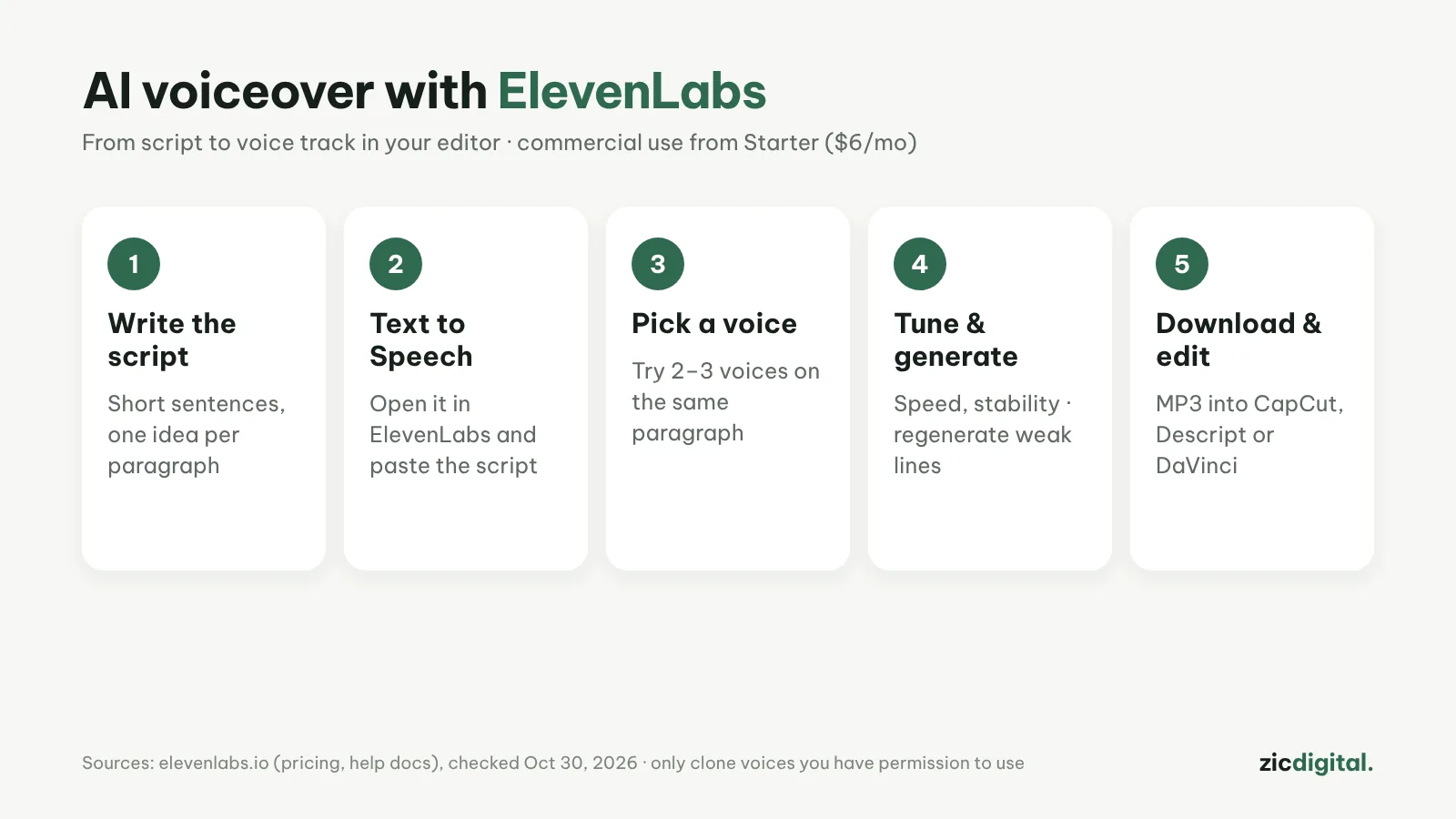
1. Write a script for the ear
Short sentences, one idea per paragraph. Spell out numbers and abbreviations the way they're spoken so the AI reads them correctly.
2. Open Text to Speech
Sign in to ElevenLabs, open Text to Speech and paste your script. For long videos, split it into sections so you can fix each part separately.
3. Pick a voice
Try 2–3 voices on the same paragraph. Match the topic: deep and slow for documentaries, bright and fast for Shorts.
4. Tune and generate
Adjust speed and stability, then generate. Regenerate only the lines that sound off instead of the whole script to save credits.
5. Download and edit
Download the MP3, drop it into CapCut, Descript or DaVinci Resolve, add your visuals and auto captions.
Tips for a more natural voice
- Use commas and full stops so the AI pauses in the right places
- Keep one voice across your channel so viewers recognize it
- Only clone your own voice or one whose owner has agreed
- Keep background music about 15–20 dB below the voice
Guide based on official help pages and docs, checked October 30, 2026 — no affiliate links.
Read more: ElevenLabs review · ElevenLabs vs CapCut Text-to-Speech 2026 · Descript review · How to Make YouTube Shorts in CapCut, Step by Step · Best Free Auto Caption Apps 2026 · YouTube Creator Toolkit 2026