How to Record Your Screen with OBS Studio for YouTube (Free)
Five steps to record your screen, webcam and mic with OBS Studio: the auto-configuration wizard, sources, noise suppression, a safe file format, then record. Free, no watermark.
OBS Studio is free, open-source software that records your screen with no time limit and no watermark. The first launch shows a lot of settings, but these five steps are all you need for a good tutorial or gameplay recording. Menu names may vary slightly by version.
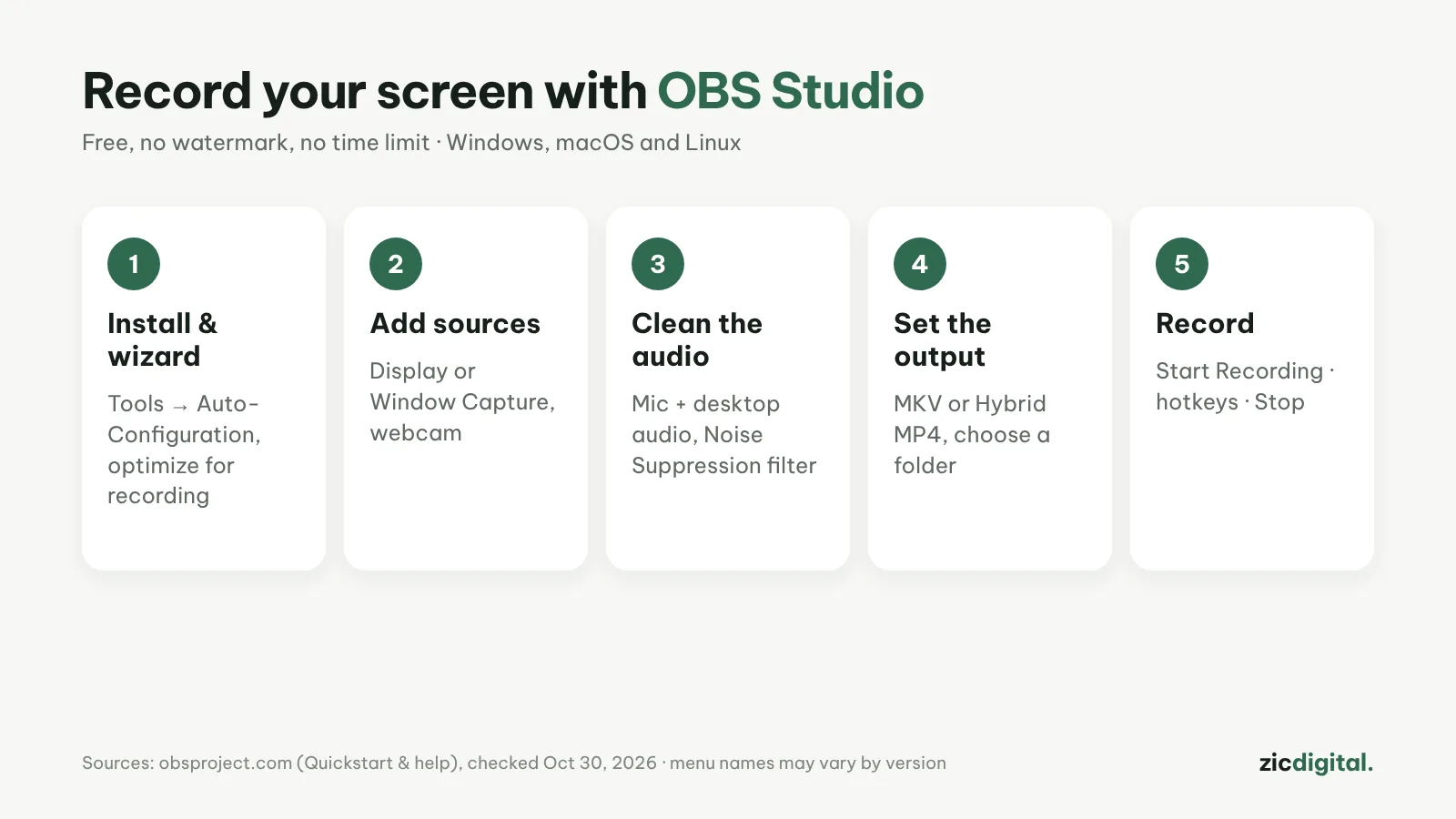
1. Install and run the wizard
Download OBS from obsproject.com. On first launch, run the Auto-Configuration Wizard (Tools menu) and choose to optimize for recording.
2. Add sources
In the Sources box, click +: Display Capture for the full screen, Window Capture for one window, Video Capture Device for your webcam. Drag to position them.
3. Clean up the audio
In the Audio Mixer, check your mic and desktop audio. Click the mic’s gear icon → Filters → add Noise Suppression to cut background noise.
4. Choose the file format
Settings → Output → Recording: pick a folder and MKV or Hybrid MP4 (newer versions) so you don't lose the file if your PC crashes. MKV can be converted with File → Remux Recordings.
5. Record
Click Start Recording, do your thing, then Stop Recording. Set hotkeys in Settings → Hotkeys so you don't record yourself clicking in OBS.
Tips
- Do a 10-second test and listen back before the real take
- Turn on Windows Do not disturb while recording
- Zoom text and the cursor for viewers on phones
- Edit afterwards in Clipchamp (fast) or DaVinci Resolve (in depth)
Guide based on official help pages and docs, checked October 30, 2026 — no affiliate links.
Read more: OBS Studio review · OBS Studio vs Clipchamp 2026 · Clipchamp review · DaVinci Resolve Export Settings for YouTube (Free Version) · Best Free Video Editors for Windows in 2026 · YouTube Creator Toolkit 2026