How to Make YouTube Thumbnails in Canva (2026): Step by Step, Right Size
Five steps to a YouTube thumbnail in Canva: the right 16:9 size, one subject, short high-contrast text, a consistent channel style, download and upload — plus how to test several thumbnails in YouTube Studio.
Thumbnails decide whether people click your video, and Canva is the fastest way to make a good one without design skills. Here is a five-step workflow that follows the technical requirements on YouTube’s help pages.
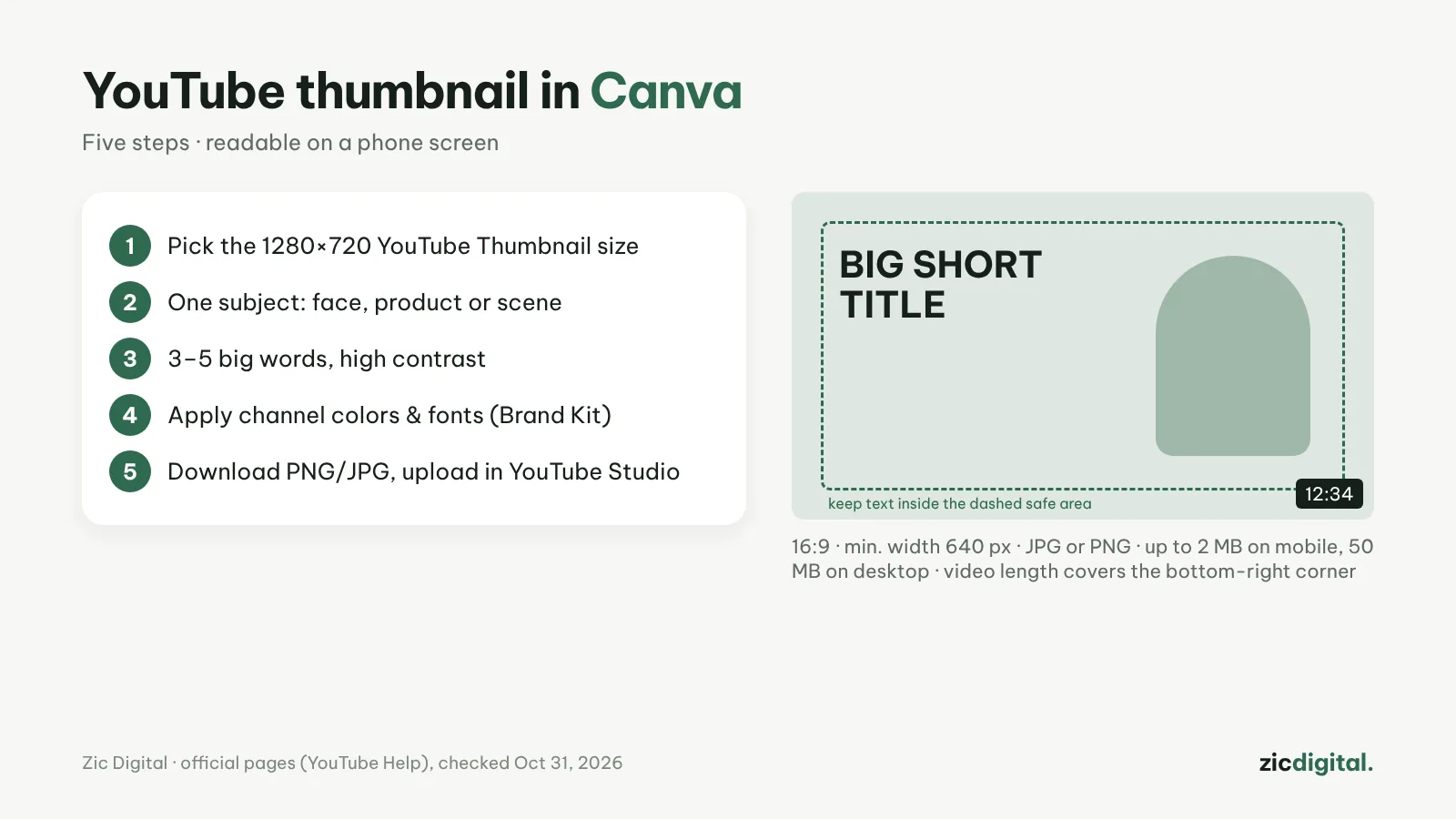
Size and format requirements
According to YouTube Help (checked October 31, 2026): video thumbnails use a 16:9 ratio with a minimum width of 640 px, and YouTube now recommends 3840×2160; formats are JPG or PNG; the limit is 2 MB when uploading from a phone and 50 MB on desktop. Your account must be verified to upload custom thumbnails.
Step 1: Create the right size
In Canva, search for "YouTube thumbnail" to open a 1280×720 canvas (exactly 16:9). For sharper results on TVs, create a custom 3840×2160 design. Pick a template close to your channel’s style or start from a blank page.
Step 2: One clear subject
Each thumbnail should have one focal point: a face with an expression, a product or one key scene. Small images on phones get messy when you cram in details.
Step 3: Short, high-contrast text
Use 3–5 big words, not the full title. Choose a text color that contrasts strongly with the background and add an outline or a color block behind it. Avoid the bottom-right corner: YouTube shows the video length there.
Step 4: Keep a channel style
Use the same 2–3 colors, the same font and the same layout for every video so viewers recognize your channel. The free plan has a basic Brand Kit; Pro offers up to 5 Brand Kits, background removal and one-click resizing to make a community post version.
Step 5: Download and upload
Download as PNG or JPG (under 2 MB if you upload from a phone). In YouTube Studio, open the video → Details → Thumbnail → Upload. Check it at a small size before saving.
Testing several thumbnails
YouTube Studio has A/B testing for titles and thumbnails: up to 3 versions, desktop only, with advanced features turned on; the version with the highest watch time wins, usually within two weeks. For extra analysis tools, see the TubeBuddy review and keyword research with TubeBuddy.
Quick answers
What about Shorts thumbnails? Use a vertical 9:16 frame (YouTube recommends 2160×3840); your account also needs to be verified.
Is free Canva enough? It’s enough for good thumbnails. You only need Pro if you remove backgrounds often or want several Brand Kits — see Canva pricing 2026.
Should I make the thumbnail before or after editing? After: use the best moment of the video as the subject so the thumbnail matches the content.
Based on YouTube Help and Canva’s official pages, checked October 31, 2026 — no affiliate links.
Read more: Canva review · CapCut vs Canva · YouTube creator toolkit 2026
Keep reading
- Canva Pricing 2026: Free, Pro or Business — Which Plan Do Creators Need?
- YouTube Creator Toolkit 2026: From Idea to Upload
- Best Free Video Editors for Windows in 2026
- Free Video Editors With No Watermark in 2026: Clean Exports for $0
- Canva vs Clipchamp 2026: Design Tool or Real Video Editor?
- 8 Best CapCut Alternatives in 2026 (Free & Paid)