How to Remove the InShot and Filmora Watermark the Right Way
The official ways to export without a watermark in InShot and Filmora, what each option costs, and why watermark-remover tools and modded apps aren't worth it.
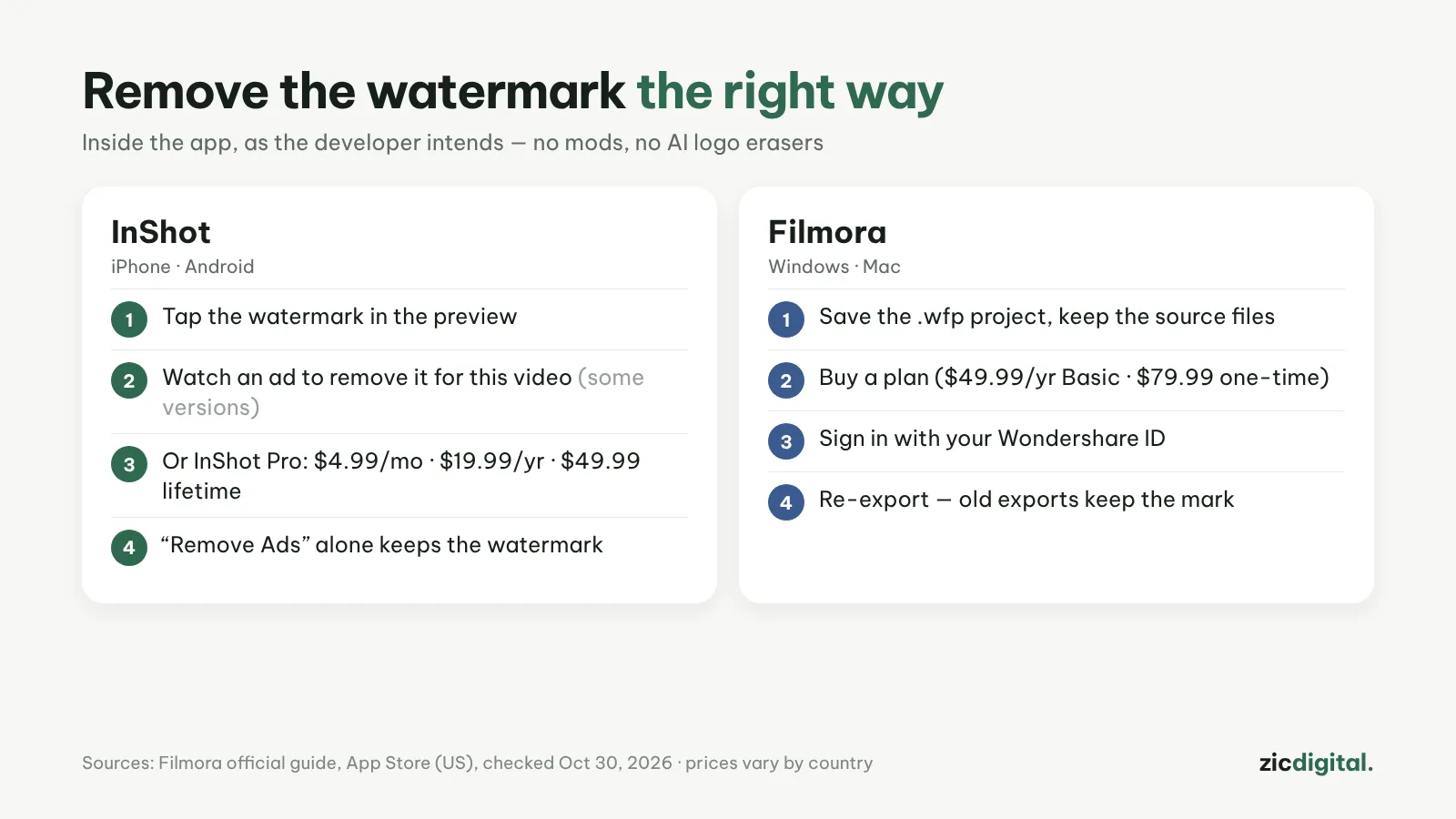
The free versions of InShot and Filmora both add a watermark on export. "The right way" means doing it inside the app, as the developer intends, not with modded apps or AI logo removers.
InShot (iPhone, Android)
- When you're done editing, look at the bottom-right of the preview: that's the InShot watermark.
- Tap the watermark (or the × next to it).
- If the app offers to watch an ad to remove the watermark, watch it to the end: it only applies to the current video. This depends on app version and region, and many recent versions only offer Pro.
- Or buy InShot Pro: $4.99/month, $19.99/year or $49.99 lifetime (US App Store). A "Remove Ads" purchase alone doesn't remove the watermark.
- Tap Save to export without the watermark.
Filmora (Windows, Mac)
- Save the project (.wfp file) and keep all original video files in place.
- Buy a Filmora plan: Basic about $49.99/year, Advanced $59.99/year or a $79.99 one-time license (Windows).
- Reopen the project, click the account icon at the top right and sign in with the Wondershare ID you bought with.
- Click Export again: the new video has no watermark.
- Videos you already exported keep their watermark — you must re-export from the project.
What not to do
- Install a modded or cracked InShot or Filmora: malware risk, lost accounts and a breach of the terms.
- Use AI logo removers on the video: the area usually ends up smeared, and it's still stripping the mark of software you didn't pay for.
- Cover the watermark with a sticker or crop it out: you lose text and frame edges.
Free options
For completely free and watermark-free, use Edits or Adobe Premiere on your phone, or DaVinci Resolve or Clipchamp on Windows.
Based on official sites, help pages and app stores, checked October 30, 2026; menus may change with updates.
Read more: InShot review · Filmora review · free video editors with no watermark · CapCut export settings · DaVinci Resolve export settings for YouTube · CapCut vs InShot · CapCut vs Filmora